
2007-07-14 16:11:49
2: Transparency
This entry is part 2 of a 12-part series on WPF 3D.
Transparency in WPF 3D
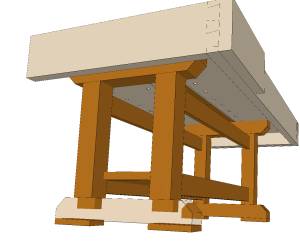 I love transparency in 3D graphics. For example, in this
picture of my workbench, I have made one foot transparent so it is easier to see
the mortise and tenon
joint used to attach the leg to the foot.
I love transparency in 3D graphics. For example, in this
picture of my workbench, I have made one foot transparent so it is easier to see
the mortise and tenon
joint used to attach the leg to the foot.
Unfortunately, transparency in WPF 3D doesn't work quite the way I would have expected.
The drawing model for WPF 3D is called a "retained scene". Basically, this means that you need to gather up all the triangles necessary to draw your scene and stuff them into a data structure which is owned by WPF. WPF will take responsibility for drawing the scene based on the information you gave it.
This is actually quite nice. The alternative is a lot more work. I started learning Windows programming in 1992. I still remember feeling sort of cheated when I first realized that Windows wasn't going to draw my objects for me. You mean just because somebody covered up my window and then uncovered it, now I have to handle WM_PAINT if I want my stuff drawn back the way it was? Why can't I just build a list of objects and let Windows handle all the redraws whenever they're needed? I was young and inexperienced. I eventually came to "get it". Nonetheless, fifteen years later, WPF is giving me what I wanted.
And WPF does this very well. I can add all my triangles in whatever order I want. WPF figures out which triangles are in front and which ones are hidden.
However, in WPF 3D, the proper functioning of transparency is dependent on the order in which the objects are drawn. This is a little disappointing. Certainly I know how to cope with such things. I just don't want to. I'm spoiled. I thought those days were behind me.
Luckily, the impact of this problem is minor. Basically, when you are building the scene for your Viewport3D, add all the opaque objects first. Then add all the transparent objects.
But this still leaves one problem: What happens if your app has an interactive way to select an opaque object and make it transparent? For example, suppose I select an object which happens to be the very first GeometryModel3D in my scene. If I simply grab its brush and set the Opacity to less than one, the object will turn transparent, but the objects behind it will not show through as they should. WPF 3D wants transparent objects to be drawn after opaque objects.
The solution to this problem is rather simple as well. Just move it to the end. The code looks something like this:
DiffuseMaterial mat = (DiffuseMaterial)myGeometryModel3D.Material;
SolidColorBrush br = (SolidColorBrush)mat.Brush;
br.Opacity = 0.3;
myModel3DGroup.Children.Remove(myGeometryModel3D);
myModel3DGroup.Children.Add(myGeometryModel3D);
Bottom line: I wish WPF 3D handled transparency without caring about the ordering, but once you know how to deal with the problem, it's not that big of a deal.